
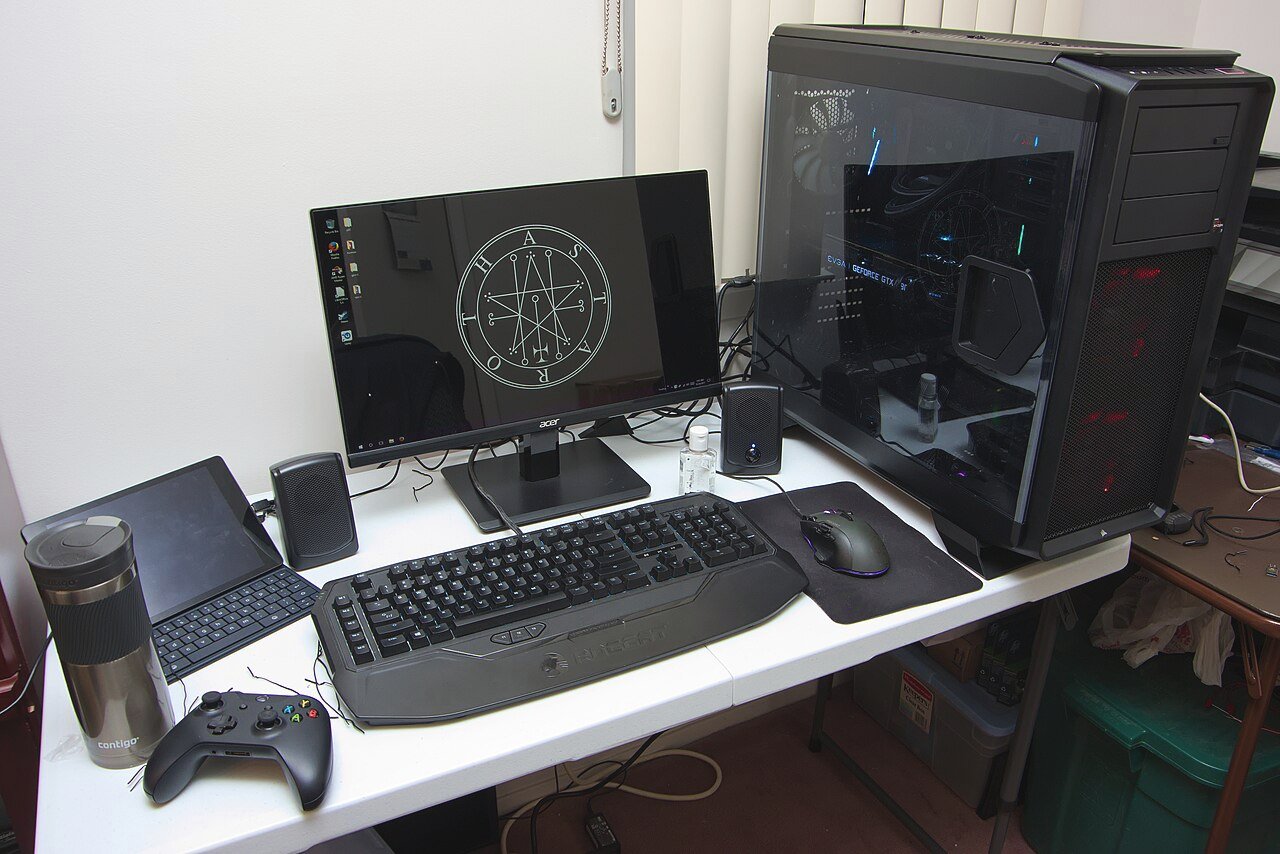
Yes — you can fix PC game stuttering without lowering settings. Most stutter comes from the system around the game, not the graphics options inside it: bloated shader caches, GPU scheduling left off, power plans throttling your CPU, and background apps stealing CPU time. Fix the system layer first and your frame times smooth out while your visuals stay exactly where you want them.
Everyone’s first instinct when a game stutters is to drop the graphics preset. But half the time the stutter isn’t your GPU struggling — it’s your CPU getting interrupted, your shader cache choking, or Windows doing something greedy in the background. Lowering settings then is like turning down your headlights because the road is bumpy.
So leave every graphics slider alone. We’ll fix stutter at the system layer, in order of impact — every step reversible, free, and testable.
Can You Really Fix PC Game Stuttering Without Lowering Settings?
“Stuttering” gets blamed for two different problems, and only one of them is about graphics settings.
Low FPS means your average frame rate is just too low — say 35 fps. Everything feels consistently sluggish. That’s a GPU horsepower problem, and it’s the one case where lowering settings is the honest fix.
Bad frame times means your average FPS looks healthy — 120 fps — but the game still hitches every few seconds. The average hides the spikes: 118 frames take 8 ms each, then one takes 80 ms. Your eyes don’t see the average; they see the spikes.
If the game stutters while average FPS looks fine, your graphics settings aren’t the problem — you’ve got frame-time spikes, and this guide is for you.
What’s the First Step? Run the One-Minute Baseline Test
Here’s the method that separates real troubleshooting from randomly toggling settings: measure, change one thing, measure again.
Grab CapFrameX (free, works with any GPU) or RTSS (bundled with MSI Afterburner). Play the same 60-second stretch of your game and note your 1% lows next to your average FPS — the frame rate your worst 1% of frames managed. An average of 120 with 1% lows of 40 is a stuttery game.
That’s your baseline. Work through the fixes below one at a time, re-running the same stretch after each. When your 1% lows jump up, you’ve found your culprit.
Should You Clear and Resize Your Shader Cache?
This is the most overlooked way to fix PC game stuttering without lowering settings. In DirectX 12 and Vulkan games, your GPU driver compiles shaders and caches them so it doesn’t rebuild them every frame. When that cache gets corrupted or too small, you get the classic symptom: a hard hitch the first time you enter a new area or see a new effect.
Step 1: Clear the old cache. Search Start for Disk Cleanup, select your C: drive, check DirectX Shader Cache, and delete it — often gigabytes of stale shaders from games you haven’t touched in months.
Step 2: Give the cache room to breathe. In NVIDIA Control Panel → Manage 3D Settings, raise Shader Cache Size from the driver default (usually 1 GB) to 10 GB. On AMD: Software → Gaming → Graphics → Shader Cache → AMD Optimized.
Let any “compiling shaders” step finish instead of skipping it, then re-run your 60-second test — this step alone smooths out open-world traversal stutter for a lot of people.
Does Hardware-Accelerated GPU Scheduling Actually Help?
Hardware-Accelerated GPU Scheduling (HAGS) lets your GPU manage its own memory directly instead of making the CPU do it. On modern systems it usually helps; on some older ones it causes micro-stutter — so test it rather than trusting a blanket recommendation.
To toggle it: Settings → System → Display → Graphics → Change default graphics settings → flip Hardware-accelerated GPU scheduling on, then restart. Run your 60-second test with it off, then on, and keep whichever gives better 1% lows. There’s no universal right answer — only your hardware’s answer.
Are Your Power Settings Throttling Your PC?
Embarrassingly common, especially on gaming laptops and prebuilts that shipped in Balanced mode. Balanced downclocks your CPU when it thinks you’re not busy — and its definition of “not busy” sometimes includes the split-second gaps between frames. Every downclock is a stutter.
Fix it in two places. First, Windows: Settings → System → Power & battery → Power mode → Best performance. Desktop users can unlock the Ultimate Performance plan with powercfg -duplicatescheme e9a42b02-d5df-448d-aa00-03f14749eb61 in an admin terminal, then select it under Control Panel → Power Options. Second, NVIDIA Control Panel → Manage 3D Settings → Power management mode → Prefer maximum performance, applied to your games only via Program Settings.
One caveat for laptop players: none of this works on battery. Keep the charger plugged in while gaming.
Which Background Apps Should You Close Before Gaming?
A few background apps love grabbing the CPU at the worst moment. Two-minute cleanup:
- Xbox Game Bar: Unless you record clips with it, turn it off (Settings → Gaming → Xbox Game Bar → Off). It hooks into every game and has a long history of frame-pacing issues.
- Discord: Disable hardware acceleration and the in-game overlay unless you use them — the overlay injects into the render pipeline of every game you launch.
- Browsers and idle launchers: Close Chrome before gaming, and quit launchers you aren’t using instead of minimizing them.
- Cloud sync: Pause OneDrive or Google Drive while you play. A big upload kicking in mid-game can saturate your disk and cause asset-streaming hitches.
Re-run your test after this cleanup — your stutter may have been background noise all along.
Does Resizable BAR Reduce Stutter?
Resizable BAR (called Smart Access Memory on AMD systems) lets your CPU access your GPU’s entire video memory at once instead of in small chunks. The FPS gains are usually modest — but in games that constantly stream assets, removing that memory bottleneck can smooth out traversal hitches.
Check it with GPU-Z (free): the main tab says “Resizable BAR: Enabled” or “Disabled.” If disabled, enable Above 4G Decoding and Resizable BAR in your BIOS and reboot. One caution: a few games historically ran worse with ReBAR on, so if stutter increases, check for a known issue with your game first.
When Should You Cap Your Frame Rate?
Inconsistent high FPS feels worse than consistent slightly-lower FPS. If your GPU renders as fast as it can, frame times bounce with the workload — 6 ms here, 14 ms there. Capping slightly below what your system sustains forces even frame pacing, and even pacing is what “smooth” actually feels like.
The practical version: if your 144 Hz monitor sees the game bouncing between 130 and 160 fps, cap it at 138 fps in RTSS (RivaTuner) — the gold standard for frame pacing. Your game looks identical; the GPU just delivers frames on a steady rhythm instead of in bursts. Thirty seconds of work, and often the most dramatic fix of all.
Frequently Asked Questions
Will these fixes work if my PC is just too weak for the game?
Only partly. These steps remove stutter caused by configuration problems — they can’t create GPU power that isn’t there. Still worth doing first: a misconfigured strong PC and a weak PC look identical until you test, and you might fix PC game stuttering without lowering settings only to discover you were hardware-limited all along.
Do I need to redo these for every game?
Most are set-and-forget: power plans, HAGS, shader cache size, and ReBAR are system-wide. Only the NVIDIA power profile and the RTSS frame cap are per-game.
Can my monitor or cable cause stutter?
Yes — rule it out. A bad HDMI or DisplayPort cable causes dropouts that feel like stutter, and Windows sometimes defaults a high-refresh monitor to 60 Hz. Check Settings → System → Display → Advanced display and confirm your monitor’s maximum refresh rate is selected.
The Bottom Line
Learning to fix PC game stuttering without lowering settings isn’t a compromise — most of the time it’s the correct diagnosis. Graphics options control how hard your GPU works; stutter usually comes from everything around the GPU: caches, scheduling, power, background noise, and uneven frame delivery. Work through the steps in order, measure your 1% lows as you go, and stop the moment the hitches disappear.