Windows 11 is Microsoft’s latest operating system and has become the preferred platform for modern PC gaming. With support for the latest gaming technologies, improved security features, and better integration with gaming hardware, Windows 11 offers an excellent foundation for gamers. However, many users fail to optimize their operating system properly, leaving valuable performance untapped.
Even powerful gaming PCs can suffer from unnecessary background processes, inefficient power settings, outdated drivers, and poorly configured gaming features. These issues can lead to lower FPS, increased input lag, longer loading times, and an overall less responsive gaming experience.
The good news is that Windows 11 includes several built-in features specifically designed to improve gaming performance. By adjusting a few settings and disabling unnecessary features, you can maximize your system’s potential and enjoy smoother gameplay.
This guide covers the best Windows 11 settings for gaming performance and explains how to optimize your PC for the best possible gaming experience.
Why Windows Optimization Matters
Many gamers focus entirely on upgrading hardware while overlooking software optimization.
A properly configured Windows 11 system can provide:
- Higher frame rates
- Lower input lag
- Faster boot times
- Better system responsiveness
- Improved game stability
- Reduced stuttering
While these optimizations won’t magically double your FPS, they can help your hardware perform at its best.
Keep Windows 11 Updated
One of the simplest yet most important steps is keeping Windows updated.
Microsoft regularly releases updates that include:
- Performance improvements
- Security patches
- Driver compatibility updates
- Gaming enhancements
To check for updates:
- Open Settings.
- Select Windows Update.
- Click Check for Updates.
Installing updates helps ensure your system runs efficiently and remains compatible with the latest games.
Enable Game Mode
Windows 11 includes a feature called Game Mode.
Game Mode prioritizes gaming processes by:
- Reducing background activity
- Preventing unnecessary updates during gameplay
- Allocating more system resources to games
How to Enable Game Mode
- Open Settings.
- Select Gaming.
- Click Game Mode.
- Turn Game Mode On.
Most gamers should leave this feature enabled.
Use the High Performance Power Plan
Power settings significantly impact gaming performance.
Many PCs use Balanced Mode by default, which prioritizes energy efficiency over performance.
For gaming, switch to a performance-focused power plan.
How to Change Power Settings
- Open Control Panel.
- Select Power Options.
- Choose High Performance.
If available, some gaming PCs also offer:
- Ultimate Performance Mode
This setting allows your CPU and other components to run at maximum performance.
Enable Hardware-Accelerated GPU Scheduling
Windows 11 supports Hardware-Accelerated GPU Scheduling (HAGS).
This feature allows the graphics card to manage its own memory more efficiently.
Benefits may include:
- Lower latency
- Improved responsiveness
- Slight FPS improvements in some games
How to Enable It
- Open Settings.
- Go to System.
- Select Display.
- Open Graphics Settings.
- Enable Hardware-Accelerated GPU Scheduling.
Restart your PC after making the change.
Enable Variable Refresh Rate
Variable Refresh Rate helps reduce screen tearing and improve smoothness.
This feature works best with compatible monitors and graphics cards.
To Enable Variable Refresh Rate
- Open Settings.
- Select System.
- Open Display.
- Click Graphics.
- Enable Variable Refresh Rate.
This setting is especially beneficial for gamers using high-refresh-rate displays.
Keep Graphics Drivers Updated
Graphics drivers are essential for gaming performance.
Manufacturers frequently release driver updates that include:
- FPS improvements
- Bug fixes
- Game-specific optimizations
Popular driver providers include:
- NVIDIA
- AMD
- Intel
Updating drivers regularly ensures maximum compatibility and performance.
Disable Unnecessary Startup Programs
Many applications automatically launch when Windows starts.
These programs consume:
- RAM
- CPU resources
- Storage activity
How to Disable Startup Apps
- Open Task Manager.
- Select the Startup tab.
- Disable unnecessary applications.
Examples include:
- Chat programs
- Cloud storage tools
- Update managers
- Media players
Reducing startup applications improves overall system responsiveness.
Turn Off Background Applications
Many apps continue running even when you’re not actively using them.
These applications can impact gaming performance.
To Disable Background Apps
- Open Settings.
- Select Apps.
- Open Installed Apps.
- Disable unnecessary background permissions.
This helps free up system resources for gaming.
Disable Xbox Game Bar If Unused
Xbox Game Bar offers useful features such as:
- Screenshots
- Recording
- Performance monitoring
However, some users report performance improvements after disabling it.
How to Disable Xbox Game Bar
- Open Settings.
- Select Gaming.
- Open Xbox Game Bar.
- Turn it Off.
If you don’t use its features, disabling it may reduce background activity.
Optimize Visual Effects
Windows includes animations and visual enhancements that consume resources.
Although modern PCs handle them well, disabling unnecessary effects can improve responsiveness.
Adjust Visual Effects
- Search for Performance Options.
- Select Adjust for Best Performance.
This disables:
- Window animations
- Transparency effects
- Visual transitions
The result is a faster and more responsive desktop environment.
Enable Storage Sense
Storage performance plays an important role in gaming.
Storage Sense helps remove:
- Temporary files
- Unused system data
- Recycle Bin contents
Enable Storage Sense
- Open Settings.
- Select System.
- Open Storage.
- Turn Storage Sense On.
Maintaining clean storage helps Windows operate more efficiently.
Install Games on an SSD
One of the best upgrades for any gaming PC is an SSD.
Benefits include:
- Faster loading times
- Quicker game launches
- Reduced texture pop-in
- Improved overall responsiveness
Modern NVMe SSDs offer even greater performance than traditional SATA SSDs.
While SSDs don’t directly increase FPS, they significantly improve the gaming experience.
Enable DirectStorage
DirectStorage is one of Windows 11’s most exciting gaming features.
Benefits include:
- Faster game loading
- Improved asset streaming
- Better use of modern SSDs
Games that support DirectStorage can load large game worlds more efficiently.
To benefit from DirectStorage, you need:
- Windows 11
- NVMe SSD
- Compatible game
Disable Notifications During Gaming
Pop-up notifications can interrupt gameplay and reduce immersion.
Enable Focus Assist
- Open Settings.
- Select System.
- Open Notifications.
- Configure Focus Assist.
This prevents unnecessary interruptions during gaming sessions.
Monitor System Temperatures
Overheating can severely reduce gaming performance.
When temperatures become too high:
- CPU speeds decrease
- GPU speeds decrease
- FPS drops occur
Use monitoring software to track:
- CPU temperature
- GPU temperature
- Fan speeds
Maintain proper cooling by:
- Cleaning dust regularly
- Improving airflow
- Replacing thermal paste when needed
Use the Correct Refresh Rate
Many gamers unknowingly run high-refresh-rate monitors at 60Hz.
Check Your Refresh Rate
- Open Settings.
- Select Display.
- Open Advanced Display.
- Choose the highest available refresh rate.
Using your monitor’s maximum refresh rate provides smoother gameplay and lower perceived input lag.
Optimize In-Game Graphics Settings
Windows optimization works best when combined with proper game settings.
For higher FPS:
- Lower shadows
- Reduce reflections
- Disable motion blur
- Lower volumetric effects
- Use DLSS, FSR, or XeSS if available
Finding the right balance between visuals and performance is essential.
Keep Your Gaming Drive Organized
Games often generate:
- Cache files
- Temporary files
- Updates
Regular maintenance helps prevent performance issues.
Consider:
- Removing unused games
- Cleaning temporary files
- Keeping adequate free storage space
Aim to keep at least 15–20% of your drive free.
Recommended Windows 11 Gaming Configuration
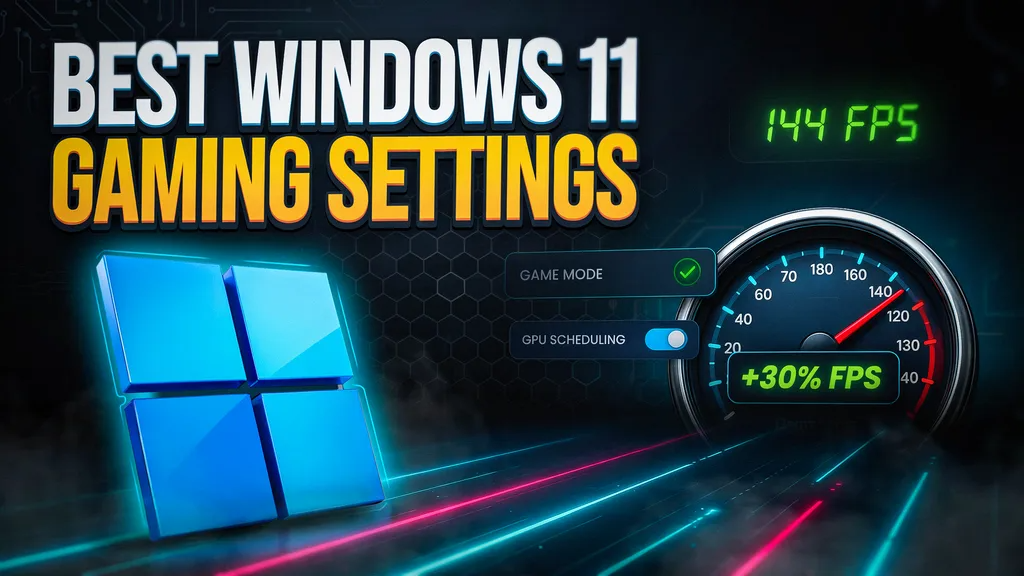
For most gamers, the ideal setup includes:
- Game Mode: Enabled
- Hardware-Accelerated GPU Scheduling: Enabled
- Variable Refresh Rate: Enabled
- High Performance Power Plan: Enabled
- Graphics Drivers: Updated
- Xbox Game Bar: Disabled if unused
- SSD Storage: Recommended
- Visual Effects: Reduced
- Background Apps: Minimized
This combination provides an excellent balance of performance and stability.
Common Mistakes That Hurt Gaming Performance
Avoid these common mistakes:
- Using outdated drivers
- Running unnecessary background applications
- Leaving power settings on Balanced mode
- Ignoring storage maintenance
- Gaming with overheating hardware
- Running high-refresh-rate monitors at 60Hz
- Allowing startup programs to accumulate
Correcting these issues can improve gaming performance immediately.
Frequently Asked Questions
Does Windows 11 improve gaming performance?
Windows 11 includes gaming-focused features such as DirectStorage and improved scheduling, which can enhance performance in supported games.
Should I enable Game Mode?
Yes. Game Mode helps prioritize gaming processes and is recommended for most users.
Is Hardware-Accelerated GPU Scheduling worth enabling?
In most cases, yes. It may improve responsiveness and reduce latency.
Does an SSD increase FPS?
Not directly, but it significantly improves loading times and overall system responsiveness.
Should I disable Xbox Game Bar?
Only if you don’t use its features. Some users may experience minor performance improvements after disabling it.
Conclusion
Windows 11 provides a strong foundation for PC gaming, but achieving the best performance requires proper optimization. Features such as Game Mode, Hardware-Accelerated GPU Scheduling, Variable Refresh Rate, DirectStorage, and High Performance power plans can help maximize the capabilities of your gaming hardware.
Combined with updated drivers, SSD storage, proper cooling, and reduced background activity, these settings can lead to smoother gameplay, lower input lag, faster loading times, and improved overall responsiveness. Whether you’re playing competitive esports titles or demanding AAA games, taking the time to optimize Windows 11 can help you get the most from your gaming PC and enjoy a better gaming experience.