Every PC gamer wants the perfect balance between visual quality and performance. Whether you’re playing competitive shooters, open-world adventures, racing games, or battle royale titles, frame rate plays a crucial role in your gaming experience. A higher FPS (Frames Per Second) results in smoother gameplay, reduced input lag, and a more responsive gaming environment.
Many gamers invest hundreds or even thousands of dollars into gaming hardware, yet they fail to optimize their graphics settings properly. As a result, they experience lower frame rates, stuttering, screen tearing, and performance issues that could easily be fixed through proper configuration.
The good news is that you don’t always need the most expensive hardware to achieve excellent performance. By understanding which graphics settings affect FPS the most, you can significantly improve gaming performance while maintaining attractive visuals.
This guide explains the best graphics settings for maximum FPS in virtually any PC game.
Why FPS Matters
FPS, or Frames Per Second, measures how many images your graphics card renders every second. The higher the FPS, the smoother the game appears.
Benefits of higher FPS include:
- Smoother gameplay
- Faster response times
- Reduced input lag
- Better aiming accuracy
- Improved competitive advantage
- More consistent gaming experience
Competitive gamers often prioritize FPS over visual quality because every millisecond matters during fast-paced gameplay.
Understanding Graphics Settings
Modern games include dozens of graphics options. Some settings heavily impact performance, while others have minimal effects.
Knowing which settings to adjust allows you to gain significant FPS without making your game look terrible.
Let’s examine the most important settings.
Resolution
Resolution has one of the biggest impacts on gaming performance.
Common resolutions include:
- 1920×1080 (1080p)
- 2560×1440 (1440p)
- 3840×2160 (4K)
Higher resolutions require your GPU to render more pixels.
Best Setting
For maximum FPS:
- Use 1080p on budget systems
- Use 1440p on mid-range systems
- Use 4K only with powerful GPUs
Reducing resolution can dramatically increase frame rates.
Texture Quality
Textures determine how detailed objects appear.
Unlike many settings, texture quality primarily affects VRAM usage rather than raw GPU performance.
Best Setting
- High on GPUs with 8GB+ VRAM
- Medium on GPUs with 6GB VRAM
- Low on GPUs with 4GB or less
Texture settings often have minimal FPS impact compared to other options.
Shadow Quality
Shadows are among the most demanding graphical features.
Dynamic shadows require substantial GPU calculations and can significantly reduce performance.
Best Setting
- Low or Medium
Lowering shadow quality often produces noticeable FPS gains while maintaining acceptable visuals.
Anti-Aliasing
Anti-aliasing smooths jagged edges on objects.
Popular types include:
- FXAA
- TAA
- MSAA
- DLAA
Some methods consume significant performance.
Best Setting
- FXAA for maximum FPS
- TAA for balanced visuals
- Avoid high-level MSAA if performance is important
Competitive gamers often disable anti-aliasing entirely.
Ambient Occlusion
Ambient Occlusion creates realistic shadows where objects meet.
While visually impressive, it can reduce performance considerably.
Best Setting
- Low
- Disabled for competitive gaming
Turning this setting off often provides noticeable FPS improvements.
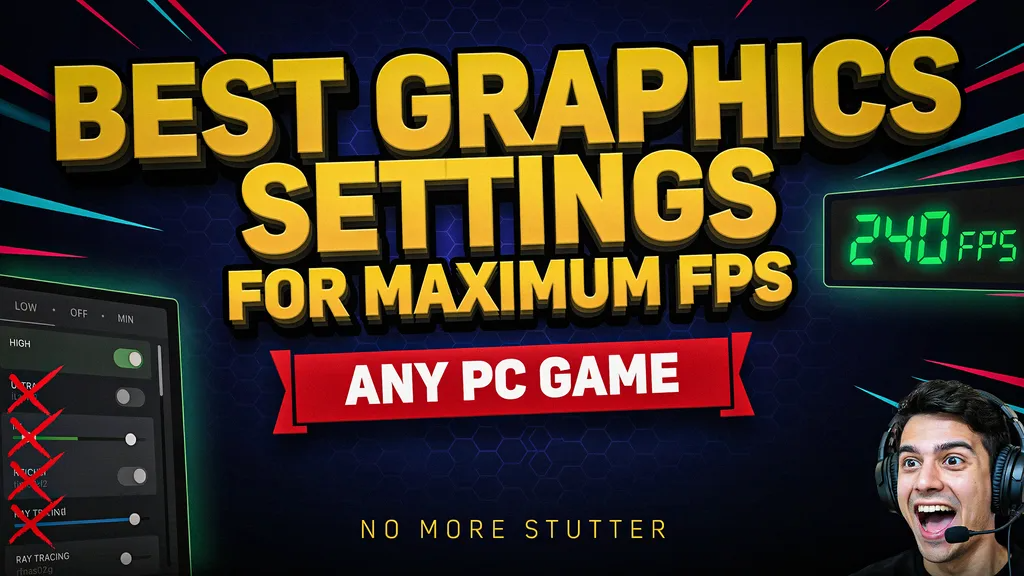
Ray Tracing
Ray tracing simulates realistic lighting and reflections.
Although beautiful, it is extremely demanding.
Best Setting
- Disable for maximum FPS
Even high-end GPUs can lose significant performance when ray tracing is enabled.
Reflections
Reflections affect mirrors, water surfaces, windows, and shiny materials.
Best Setting
- Low or Medium
High reflection settings consume considerable GPU resources.
Motion Blur
Motion blur simulates movement by blurring the screen during fast actions.
Many gamers dislike this effect.
Best Setting
- Disabled
Disabling motion blur improves visual clarity and may slightly improve performance.
Depth of Field
Depth of field blurs background objects for cinematic effects.
Best Setting
- Disabled
This provides sharper visuals and slightly better performance.
Volumetric Effects
Volumetric lighting and fog create realistic atmospheric effects.
Examples include:
- Sun rays
- Smoke
- Fog
- Clouds
Best Setting
- Low
These settings can significantly impact FPS in some games.
View Distance
View distance determines how far objects render in the game world.
Best Setting
- Medium
Very high view distances often reduce FPS dramatically, especially in open-world games.
Foliage Quality
Trees, grass, and vegetation can heavily affect performance.
Best Setting
- Low or Medium
Reducing foliage quality is one of the easiest ways to gain FPS in open-world games.
Post Processing
Post-processing includes effects such as:
- Bloom
- Lens flare
- Color correction
- Film grain
Best Setting
- Low
Many of these effects provide little gameplay benefit.
V-Sync
V-Sync synchronizes FPS with your monitor’s refresh rate.
While it can eliminate screen tearing, it often introduces input lag.
Best Setting
- Disabled for competitive gaming
- Enabled only if screen tearing becomes distracting
DLSS, FSR, and XeSS
Modern upscaling technologies can dramatically improve FPS.
Examples include:
- NVIDIA DLSS
- AMD FSR
- Intel XeSS
These technologies render games internally at lower resolutions and upscale them intelligently.
Best Setting
- Enable whenever available
- Use Quality or Balanced mode
This often provides large FPS gains with minimal visual quality loss.
Best Graphics Settings for Competitive Games
If your goal is maximum performance in competitive titles such as tactical shooters or esports games, use:
- Resolution: 1080p
- Texture Quality: Medium
- Shadows: Low
- Anti-Aliasing: Low
- Ambient Occlusion: Off
- Reflections: Low
- Motion Blur: Off
- Depth of Field: Off
- View Distance: Medium
- V-Sync: Off
- DLSS/FSR: On
These settings maximize responsiveness and frame rates.
Best Graphics Settings for Single-Player Games
For story-driven games, visual quality may be more important.
Recommended settings:
- Resolution: Native
- Texture Quality: High
- Shadows: Medium
- Anti-Aliasing: TAA
- Ambient Occlusion: Medium
- Reflections: Medium
- Motion Blur: Optional
- View Distance: High
- DLSS/FSR: Quality Mode
This provides excellent visuals while maintaining strong performance.
Additional Tips to Increase FPS
Update Graphics Drivers
New driver releases often include game-specific optimizations.
Always keep your GPU drivers updated.
Close Background Applications
Programs running in the background consume system resources.
Close:
- Web browsers
- Streaming software
- Unnecessary launchers
- Background utilities
Enable Game Mode
Windows Game Mode prioritizes gaming performance.
This can improve system responsiveness during gameplay.
Monitor Temperatures
Overheating can cause thermal throttling.
Ensure:
- Proper airflow
- Clean fans
- Functional cooling systems
Install Games on SSDs
Solid-state drives reduce loading times and improve overall responsiveness.
Upgrade RAM
Modern games increasingly require:
- 16GB RAM minimum
- 32GB RAM for heavy multitasking
Insufficient RAM can cause stuttering.
Common Graphics Setting Mistakes
Many gamers make mistakes such as:
- Running ultra settings unnecessarily
- Enabling ray tracing on weak hardware
- Using high resolutions beyond GPU capabilities
- Ignoring upscaling technologies
- Keeping outdated drivers installed
Avoiding these mistakes can instantly improve performance.
Finding the Perfect Balance
Every gaming PC is different.
The ideal approach is:
- Start with Medium settings.
- Run benchmark tests.
- Adjust demanding settings individually.
- Monitor FPS changes.
- Fine-tune until satisfied.
This method provides the best balance between visuals and performance.
Frequently Asked Questions
What graphics setting affects FPS the most?
Resolution, shadows, ray tracing, and view distance typically have the largest impact on FPS.
Should I use Ultra settings?
Not necessarily. Ultra settings often reduce FPS significantly while providing only minor visual improvements.
Is 60 FPS enough?
Yes, for casual gaming. Competitive players often prefer 120 FPS, 144 FPS, or higher.
Does more RAM increase FPS?
Additional RAM can improve performance if your system currently lacks sufficient memory.
Should I enable DLSS or FSR?
Yes. These technologies can provide major FPS improvements with minimal visual quality loss.
Conclusion
Achieving maximum FPS doesn’t always require expensive hardware. By carefully adjusting graphics settings such as shadows, ambient occlusion, reflections, and ray tracing, gamers can unlock substantial performance gains while maintaining attractive visuals.
The most effective strategy is to prioritize settings that offer the biggest FPS improvements while preserving image quality where it matters most. Combined with updated drivers, proper cooling, SSD storage, and modern upscaling technologies like DLSS and FSR, even mid-range gaming PCs can deliver a smooth and enjoyable gaming experience.
Whether you’re competing in fast-paced multiplayer matches or exploring massive open worlds, optimizing your graphics settings is one of the easiest and most effective ways to get the best possible performance from your gaming PC.